Descargar gratis


 G1 Plus

How to boost FPS in LoL and fix FPS drops (2026 guide)
 GamerOne Editör Ekibi
 4 min de lectura
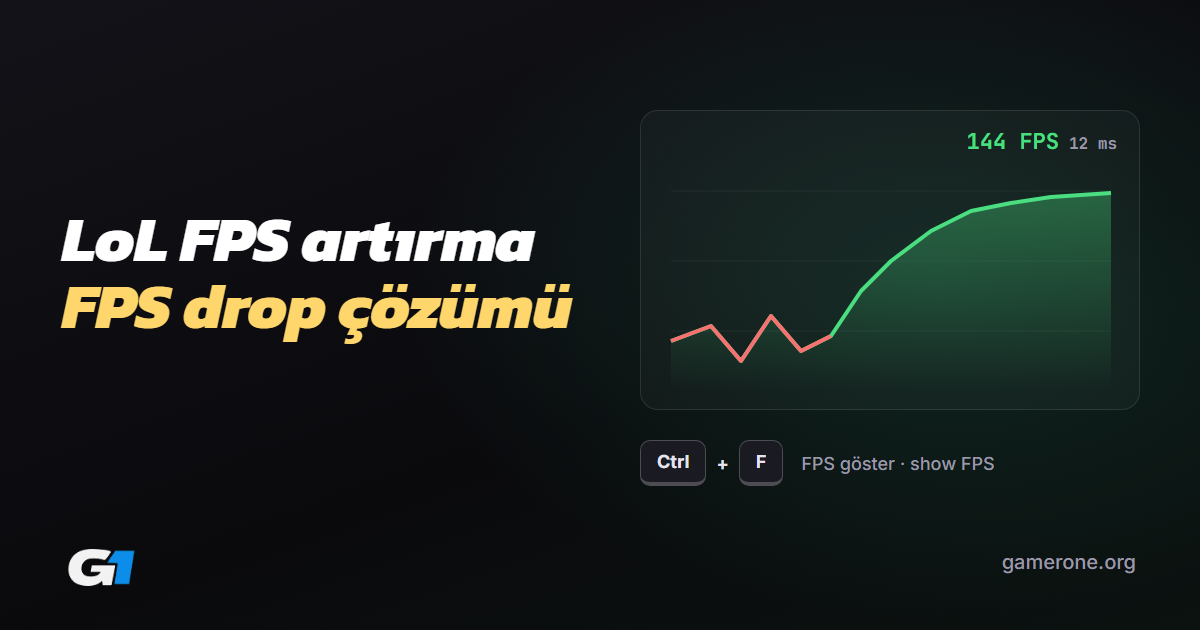
The fastest way to boost FPS in LoL takes four steps: update your graphics driver, turn off Vertical Sync, set the frame rate cap to your monitor's refresh rate and lower shadow and effects quality. To see your FPS, press in game. This guide walks through Riot's official low-FPS steps and the in-game, client and Windows settings, step by step.
Most FPS drops in LoL don't come from your hardware; they come from the wrong settings, outdated drivers and programs running in the background.
Quick summary: how do you boost FPS in LoL?
- Press in game to see your FPS.
- Update your graphics driver from the manufacturer's website.
- Turn off and pick a that matches your monitor.
- Lower and effects quality.
- Close heavy background programs; on a laptop, plug in and use a high-performance power plan.
How do you show FPS in LoL?
Press in game and your FPS and ping appear in the top right. Compare the number before and after each change, so you see what actually works instead of guessing.
Is it FPS or ping?
| Symptom | Most likely | Check first |
|---|---|---|
| The picture stutters and isn't smooth | Low FPS | Video settings and driver |
| Your character reacts late, enemies teleport | High ping | Your connection (check ping with Ctrl + F) |
| FPS only drops in teamfights | Effects load | Effects and shadow quality |
| FPS drops gradually during a match | Heat and throttling | Fans, airflow, power plan |
What does Riot officially recommend for low FPS?
Riot's support page recommends these four steps on Windows, in this order:
- Check that your PC meets the minimum system requirements.
- Update your graphics card drivers.
- Lower your graphics settings.
- Perform a clean boot: start Windows with only essential services to rule out background programs.
On macOS, Riot recommends checking the system requirements, updating macOS, lowering graphics settings and closing unnecessary apps. If the problem continues, you can submit a ticket to Riot.
The best LoL video settings for FPS
These options in the Video tab of the settings menu affect FPS the most. Hover over a setting name to see the recommended value.
| Setting | Recommended | Effect on FPS |
|---|---|---|
| Your monitor's refresh rate | Evens out frame times | |
| Off | Reduces input lag | |
| Off or Low | Usually the biggest gain | |
| Effects Quality | Low or Medium | Noticeable in teamfights |
| Character and Environment Quality | Medium; Low if you struggle | Medium |
| Off | Small | |
| Anti-Aliasing | Off on weaker GPUs | Depends on your GPU |
| Resolution | Your monitor's native value | Lower only as a last resort |
Client settings
- reduces the client's resource usage; it doesn't directly change in-match FPS, but it helps weaker PCs.
- If your client settings offer an option to close the client while in game, turning it on frees up memory.
What should you do in Windows and on your hardware?
- Drivers: Install the latest graphics driver from the NVIDIA, AMD or Intel website.
- Power plan: Pick the High performance power plan in Windows. Plug your laptop in; on battery, the GPU and CPU are throttled.
- Background programs: Use to close the programs using the most CPU and memory before your match. Browser tabs, screen recorders and streaming software are among the most common causes.
- Heat: If FPS falls gradually during a match, your CPU or GPU may be overheating and throttling; clean your fans and airflow.
- The right GPU on laptops: On laptops with two graphics chips, make sure the game runs on the dedicated GPU (Windows Graphics settings or your GPU software).
Why does FPS drop on a high-end PC?
Common causes of sudden FPS drops on a strong system:
- Uncapped frame rate: The GPU works unevenly; set a .
- Overlays and recorders: Turn off screen recorders, overlays or streaming software one by one and test.
- Broken driver: Reinstall it with a clean installation.
- Corrupted game files: Use the repair option in the client.
Follow the strongest champions on the tier list and read our guide to climbing. Create a free GamerOne account
FAQ
How do I show FPS in LoL?
Press Ctrl + F in game; your FPS and ping appear in the top right.
How much FPS is enough for LoL?
FPS equal to your monitor's refresh rate is ideal: 60 on a 60 Hz monitor, 144 on a 144 Hz monitor.
Should Vertical Sync be on or off?
Off. It adds input lag.
Does Low Spec Mode boost in-game FPS?
Not directly. It reduces the client's resource usage; lower your video settings for in-game FPS.
What should I do if FPS only drops in teamfights?
Lower effects and shadow quality first, then set a frame rate cap.
Sources
Riot's official steps: Low Frame Rate (FPS) Troubleshooting. Setting recommendations are general; confirm them on your own PC by measuring with Ctrl + F. Last checked: November 4, 2026.
To talk about your setup with other players, join our Discord: discord.gamerone.org
GamerOne isn't endorsed by Riot Games and doesn't reflect the views or opinions of Riot Games or anyone officially involved in producing or managing Riot Games properties. Riot Games, and all associated properties are trademarks or registered trademarks of Riot Games, Inc.